In short
A SOC video wall gives a security operations team a shared view of alerts, incident status and the supporting information it needs to act. Start with the decisions analysts and the incident lead need to make, then choose sources, layouts and access rules. This guide provides a worked planning example and an acceptance checklist for a SIEM video wall.
Choose sources by the information each role needs
The SIEM remains the system for its security analysis and alerts. The wall makes selected views visible to the room. A dashboard from Splunk, Elastic, Microsoft Sentinel or another tool requires validation of its display route, authentication and data-refresh behaviour. Listing a product name is not a claim of a certified Craft Wall connector.
| Information | Possible display route | Question to resolve |
|---|---|---|
| SIEM summary and incident queue | An approved web dashboard or authorised remote desktop | Which data may be shown to everyone in the room? How does authentication expire? |
| Service or infrastructure state | A web dashboard | How can operators identify stale data and the last refresh time? |
| Relevant camera view | A supported camera stream or a permitted VMS display route | Which stream, credentials and network segment are approved? |
| Analyst investigation | RDP/VNC or compatible video capture, where authorised | Is viewing sufficient, or is keyboard and mouse control required? |
Craft Wall's source catalogue includes web pages, remote desktops, video streams and capture. Confirm the exact format and access path for every source. A working browser on an analyst laptop does not establish that the same application will work inside the controller environment.
A worked routine and incident layout
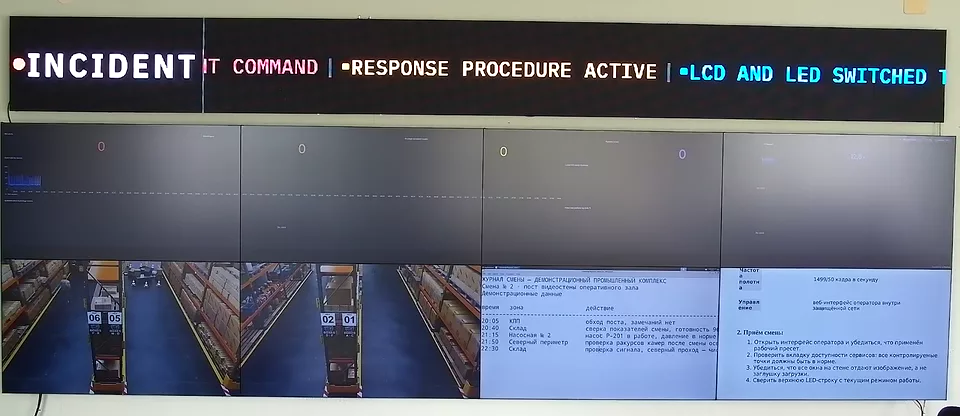
For a planning exercise, use two security-summary views, one incident queue, one service-health dashboard, two camera views and one investigation desktop. These seven views are an example, not a customer deployment or a server-capacity measurement.
In the routine scene, keep the summaries and queue large enough to read. In the incident scene, enlarge the investigation view and the relevant incident details while retaining the service overview. Decide who can change the scene and who restores routine monitoring. Avoid displaying personal credentials or evidence that the whole room is not authorised to see.
Saved scenes support evaluation of this operator workflow. If you need an external alarm to request a scene, define the permitted event, integration owner and operator override, then validate the alarm workflow in your proof of concept.
Acceptance checks before purchase
- Record the controller, GPU, outputs, software version and formats of the sources in the proposed configuration.
- Check text readability in both layouts from the actual working distance, including timestamps and incident ownership.
- Expire a test dashboard session. Check what the room sees and how an authorised operator restores access.
- Interrupt and reconnect one test feed. Record behaviour of that window and the other views on the physical wall.
- Verify role restrictions and the agreed network boundaries. If redundancy is required, test the complete display path during a planned switchover.
Set recovery and support targets for your configuration in the project agreement. The deployment review helps define these requirements; a product recording is not a recovery-time guarantee or a security certification.
Prepare a quote and a useful demonstration
Send the wall geometry, source types and quantities, access restrictions, required operator actions and decision timeline. Keep passwords, live incident evidence and private credentials out of the enquiry. Use the server sizing tool to organise the hardware requirements and the pricing page to distinguish software from a complete server offer.
Start with a 30-minute session on the Craft Wall stand to try the controls and observe the real wall. Validation of your own SIEM environment belongs in a separately agreed proof of concept.