Conheça o produto
30 minutos no estande ao vivo, por conta própria: interface do operador e câmera voltada para o videowall físico.
Recursos · 02 / 06 · incluído na licença
The console shows the wall as a canvas. Operators drag sources onto it, resize and layer the windows, and save the result as a scene that anyone on the shift applies with one click.
Agendar demonstração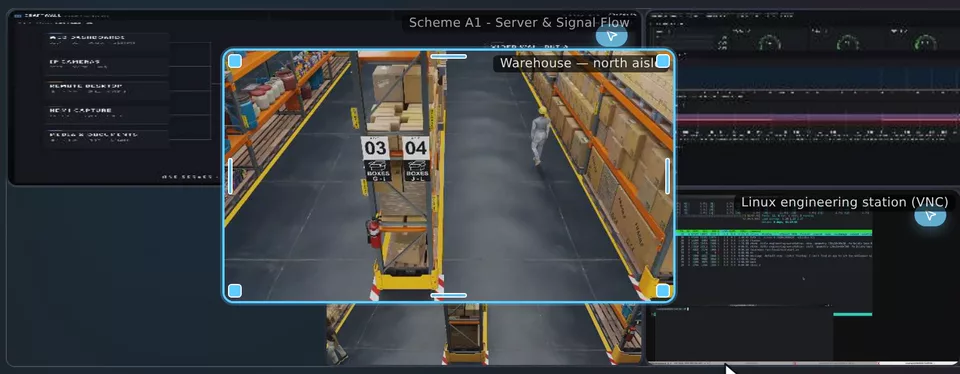
Esta página está disponível em inglês enquanto a tradução para Português é preparada. English →
Drag a source from the list onto the canvas, then move and resize its window. The physical wall applies the new geometry when you release the mouse.
Windows can overlap. Bring a window forward, lock it, hide it or set its opacity; keyboard shortcuts cover the same actions.
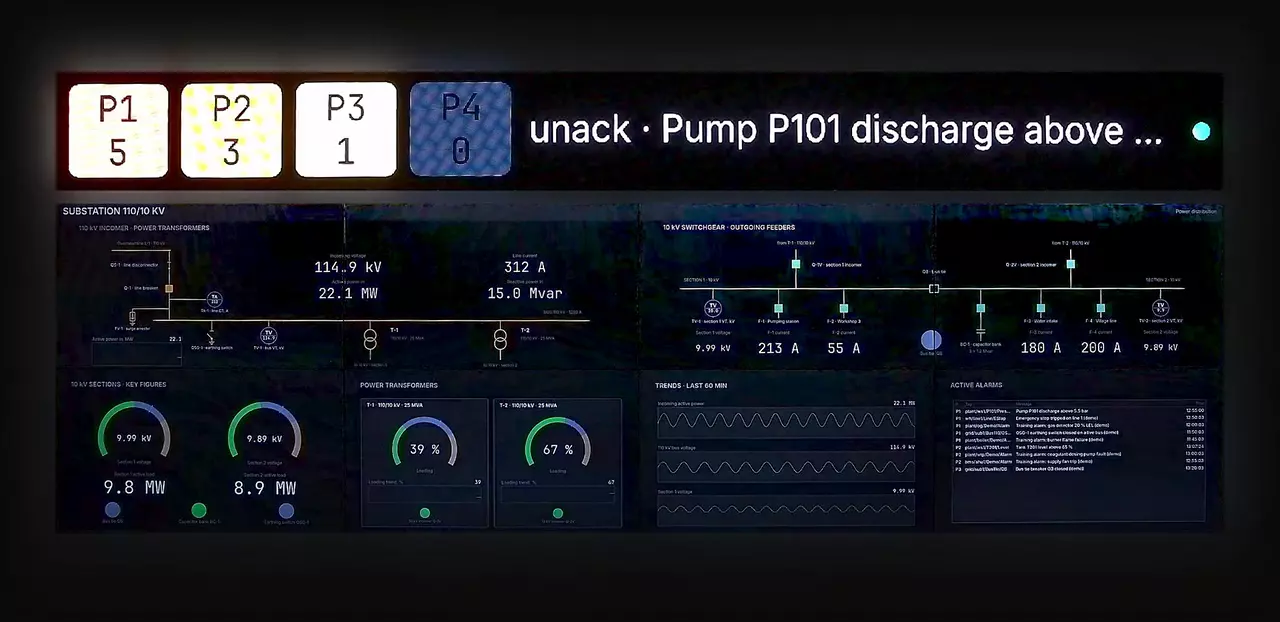
A scene stores the windows, their sources and their geometry. Prepare scenes for routine monitoring, shift handover, incidents and meetings.
Each scene has a thumbnail drawn from its real layout, so operators recognise it before they apply it.
The grid editor divides the canvas into regions. Merge cells, set gaps and margins, and save the grid as a template.
Drop sources into the cells to build a scene on that grid.
The console runs in a browser on a laptop or tablet; nothing is installed on the workstation.
Every operator sees the same canvas. A change made by one operator appears for the others immediately.
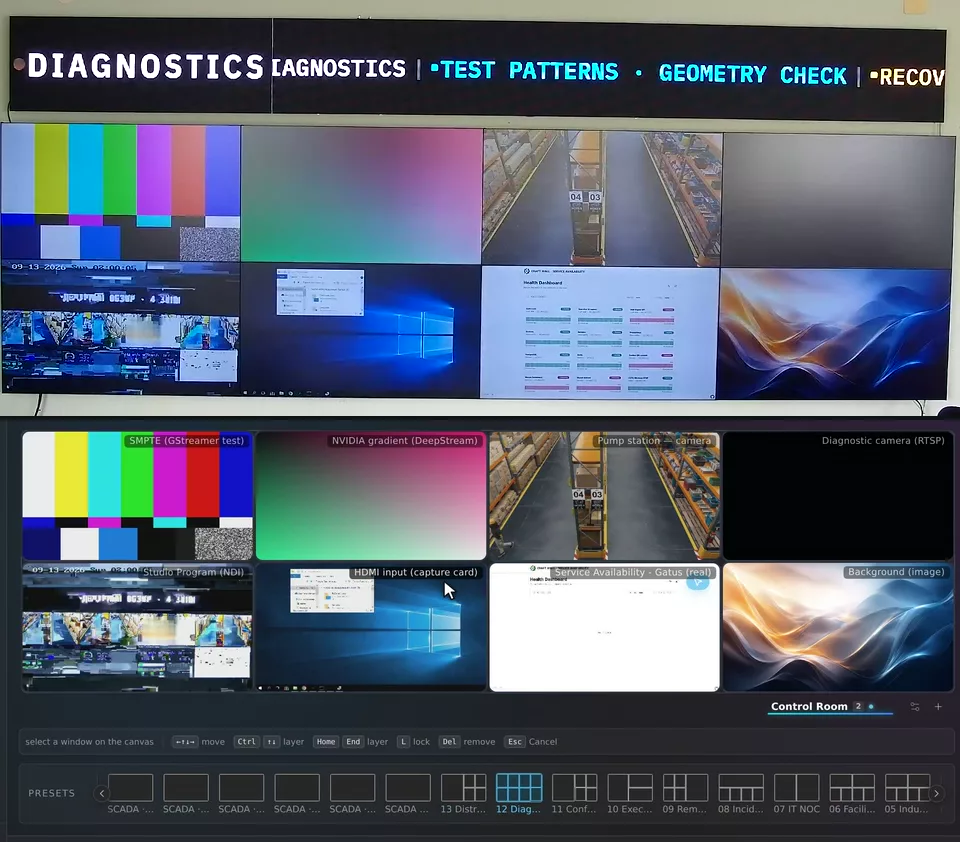
A surface is one physical wall: an LCD array, an LED screen or a projector. One server drives several surfaces and can combine them into a group.
On the product stand, a 7680 × 2160 LCD wall and a 1200 × 120 LED line work as one group.
The display wizard places the server's video outputs on a plan of the wall: position, rotation in 90° steps, bezel width and LED pixel pitch. Identify shows each display's number.
The number and resolution of displays depend on the server's GPU and video outputs. For an LED wall, connect the outputs to your LED processor.
Agree these points with the people who will use the room.
Leia a ficha técnica ou a metodologia de TCO antes de agendar uma demonstração.
Recursos
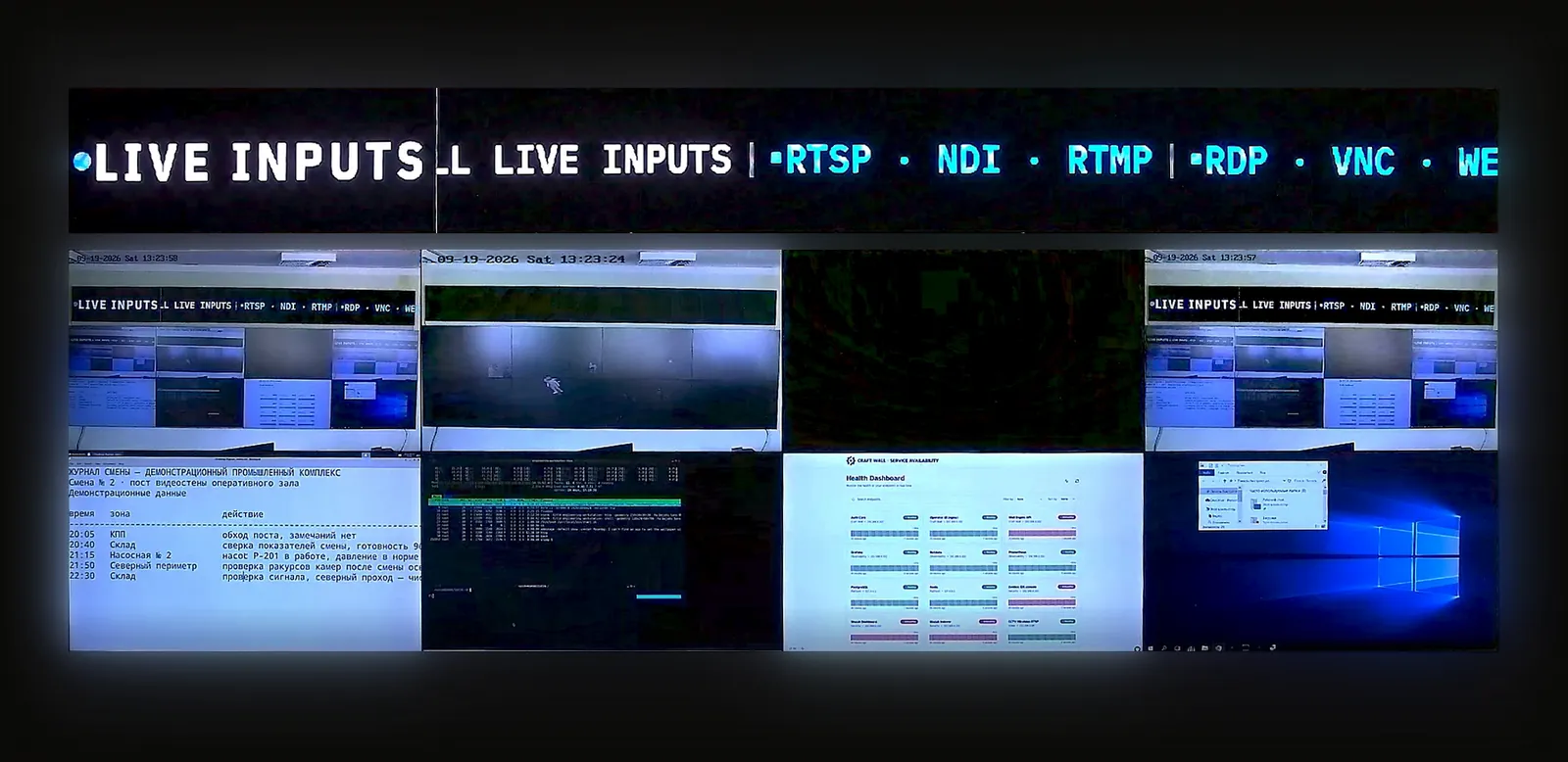
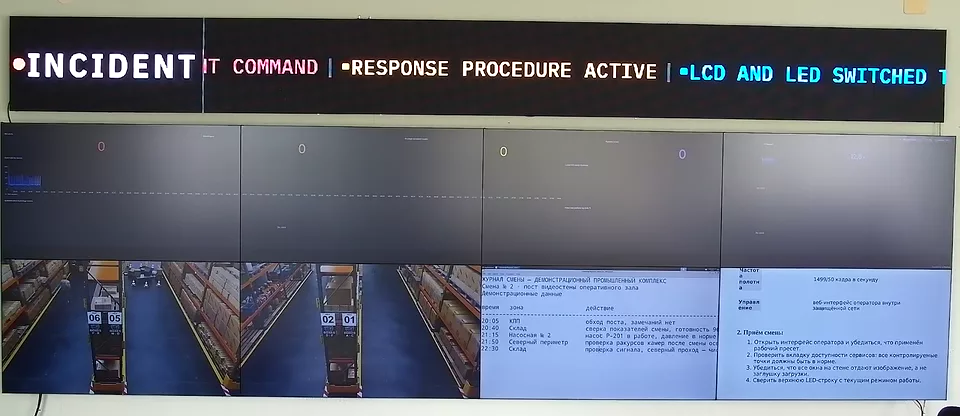
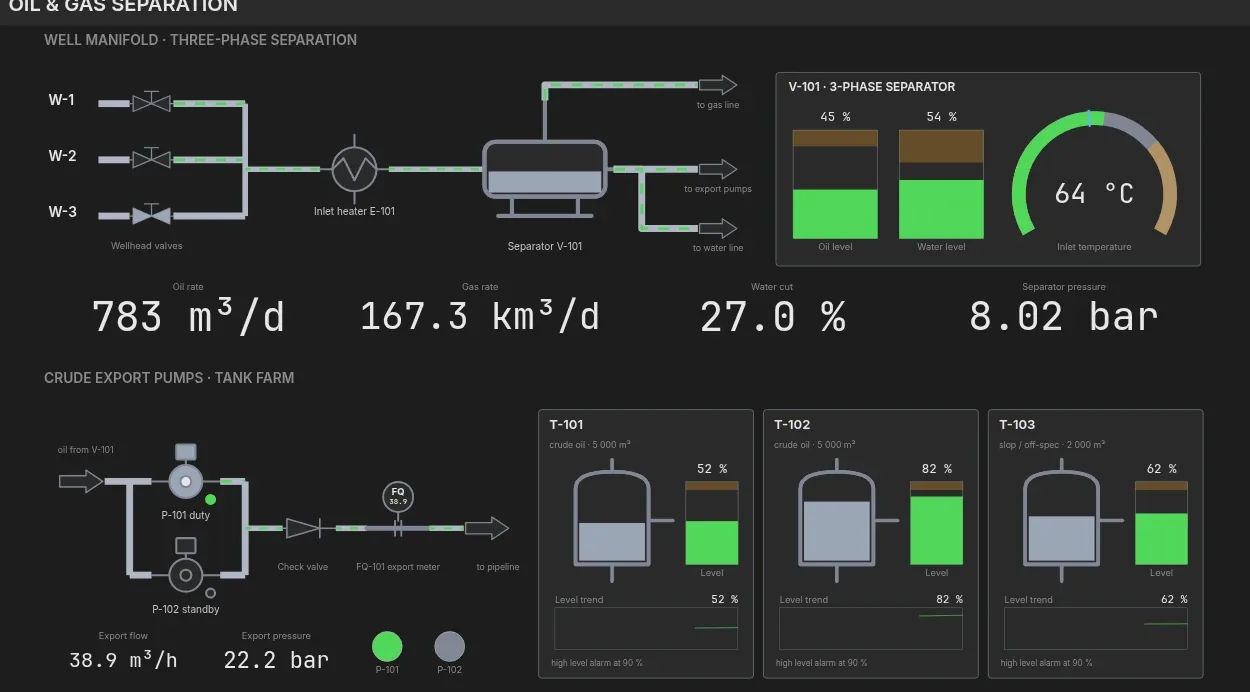
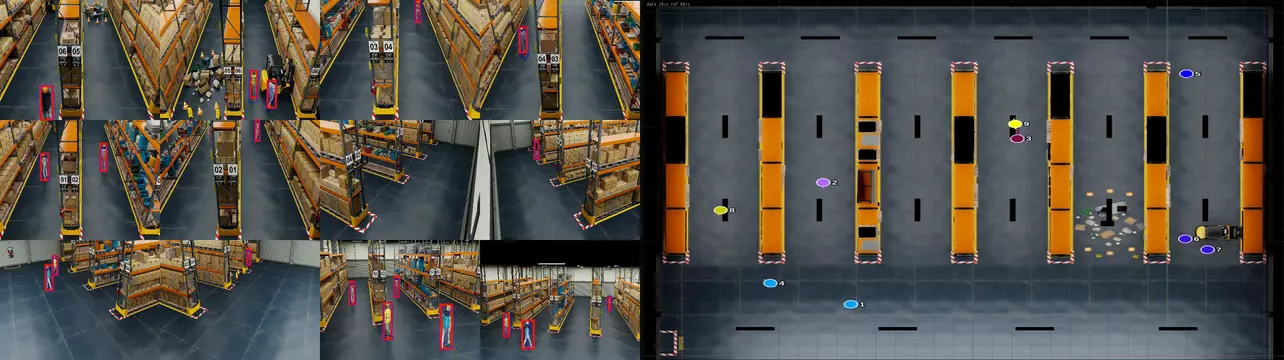
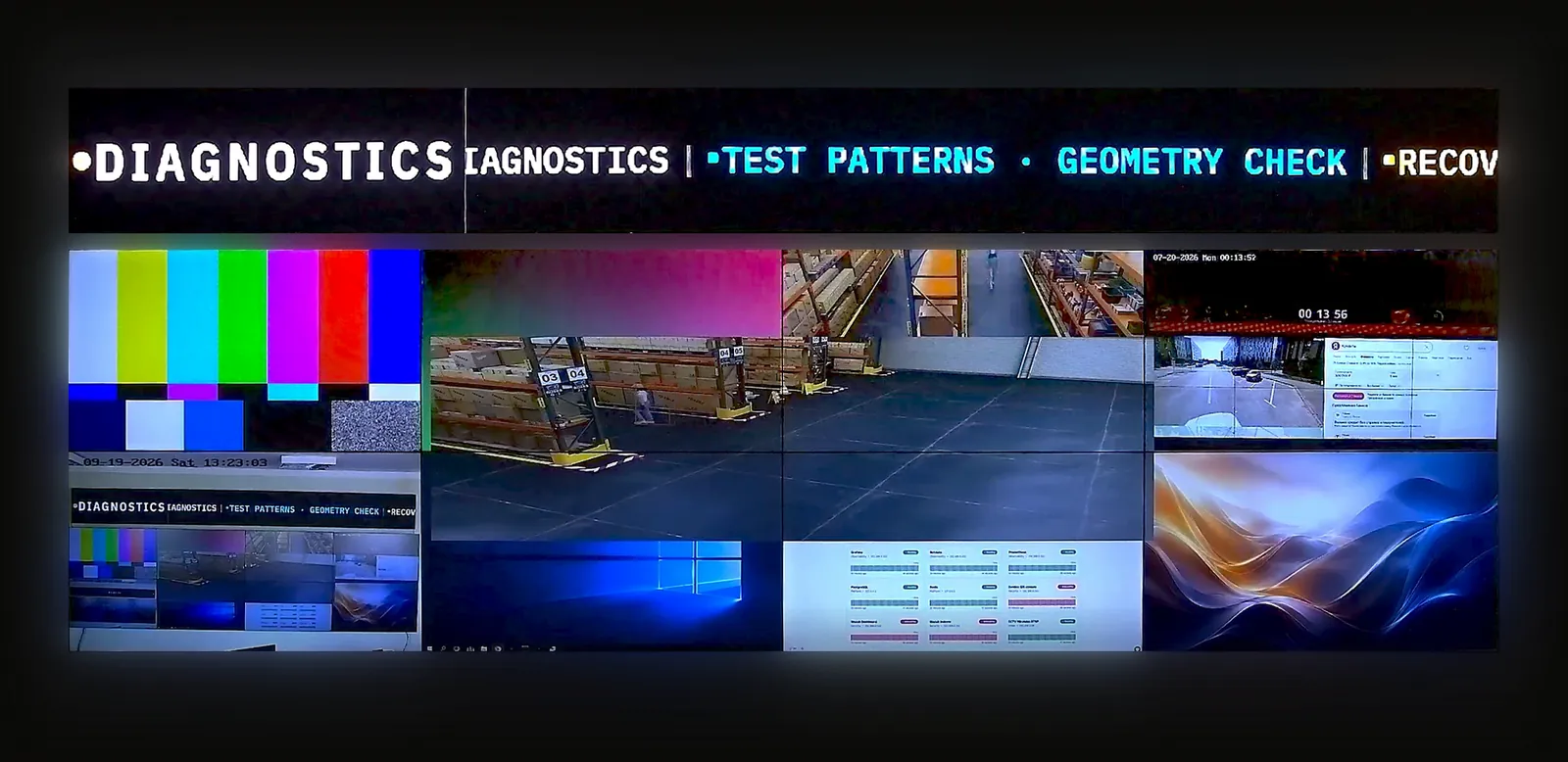
30 minutos no estande ao vivo, por conta própria: interface do operador e câmera voltada para o videowall físico.
Compartilhe o layout das telas, as fontes e os requisitos. Vamos conversar sobre a configuração e preparar um orçamento.
Para integradores e revendedores que avaliam software para projetos de clientes.